Cancel an order
Canceling an order provides a way to stop the fulfillment process and refund the customer. This is useful when:
- A customer requests to cancel their order before it ships.
- You need to cancel an order due to inventory issues.
- You need to correct an order with incorrect information.
Orders processed through Zonos can be canceled via Dashboard. Once an order has been canceled, it cannot be undone, and funds cannot be recaptured once completed.
Cancellation Requirements
-
Shipped orders: Orders cannot be canceled when marked as "shipped." The shipping label must be voided to cancel the order.
-
Refunds with cancellations: When you cancel an order, a full refund will be automatically processed in the shopper's currency paid at checkout. This refund cannot be undone once completed.
-
Canceling orders through your ecommerce platform for Zonos Checkout: For orders processed through Checkout, you must cancel through Dashboard or use the
orderCancelAPI endpoint. Otherwise, the order and payment will remain active in Zonos. See our API documentation for details. -
Duty and Tax app users: If you use a Duty and Tax plugin, you must cancel orders through your ecommerce platform since Zonos doesn't process the order payment and cannot update the order status in your system. When you cancel an order in your ecommerce platform, the cancellation will automatically sync and update the order status in Dashboard.
How to cancel an order
- Go to Dashboard -> Orders -> All orders.
- Select the order you want to cancel on the All orders page. You can use the search bar or the filter in the top right.
- Click More actions near the top, then select Cancel order from the dropdown menu.
- Add a note stating the reason for cancellation.
- Click Cancel order and confirm when prompted Are you sure?
The cancellation will automatically process a full refund to the customer in their original checkout currency. The order status and order detail page will be updated and show Canceled as the order status.
Place an order on hold
Placing an order on hold pauses fulfillment so you can review or verify the order before it ships. This is useful when:
- You need to verify customer information before shipping.
- You're waiting on stock, documentation, or a customer reply.
- You want to manually review the order before any further action is taken.
A hold is a temporary, merchant-initiated state. You can release the hold at any time to resume normal processing.
What's blocked while on hold
While an order is on hold, the following actions are blocked until the hold is removed:
- Refunds - You can't refund the order.
- Cancellation - You can't cancel the order.
- Tracking number updates - You can't add or remove a tracking number.
- Label creation - You can't create a shipping label.
The order remains visible in Dashboard with an On hold status badge, and any notes you add to the hold are recorded in the order's activity log for your team. These notes are internal only and are not shown to the customer.
Hold requirements
- Fulfilled orders - Orders that have already been fulfilled (
CompletedorPartially shipped) cannot be placed on hold. - Released holds first - A held order must be released back to
Openbefore it can move to any fulfillment status.
How to place an order on hold
- Go to Dashboard -> Orders -> All orders.
- Select the order you want to place on hold on the All orders page. You can use the search bar or the filter in the top right.
- Click More actions near the top, then select Place on hold from the dropdown menu.
- Optionally, add a note explaining the reason for the hold. The customer will not see this note.
- Click Place on hold to confirm.
The order status will update to On hold, and an entry will be added to the order's activity log noting the status change and any note you provided.
How to remove a hold
- Go to Dashboard -> Orders -> All orders.
- Select the held order on the All orders page. You can filter by the
On holdstatus to find held orders quickly. - Click More actions near the top, then select Remove hold from the dropdown menu.
- Optionally, add a note explaining why the hold is being removed.
- Click Remove hold to confirm.
The order returns to its previous state (typically Open) and can be fulfilled, refunded, or canceled as normal.
Webhooks: Placing or releasing a hold triggers an
ORDER_STATUS_CHANGEDwebhook, so any downstream systems subscribed to order status events will be notified of the change.
Refunds
Refunds give you flexibility to handle customer returns and issues. You can refund an entire order or specific parts of an order such as the items, shipping cost, or duties, taxes, and fees.
This helps you maintain customer satisfaction while managing your international orders effectively. For example:
- If a package was delayed in transit, you can refund just the shipping cost.
- If a package was missing an item, you can refund the amount of the item.
- If a package was damaged in transit, you can refund the full amount.
Refund Processing and Currency Conversion
Orders with payments processed through Zonos can be refunded through Dashboard. Once an order has been refunded, it cannot be undone. Based on the customer's bank and country where the order was placed, funds may take 3-5 business days to show up on their statements.
When processing a refund, you'll see a currency toggle in the refund dialog that allows you to:
- View and enter refund amounts in USD (your store's billing currency)
- View and enter refund amounts in the shopper's original checkout currency
The toggle will default to your preferred currency setting from your Dashboard preferences. If you process a refund in USD, Zonos automatically converts the amount to the shopper's currency using the exchange rate at the time of the order, ensuring they receive exactly what they paid, mitigating any currency fluctuations.
Refunding through your ecommerce platform: A refund processed through your ecommerce platform will not trigger a refund in Zonos automatically. Since Checkout processes your order payments, you must refund these orders through Dashboard or use the
orderRefundCreateAPI endpoint to trigger a refund in Zonos from your ecommerce platform. For more details, see our API documentation.
Credit card processing fees: Refunds will always be issued in the currency paid at checkout. Zonos refunds a portion of the Checkout order transaction fee to the retailer in case of cancellation or refund. The portion of the fee paid to the credit card processing company is non-refundable due to processing fees incurred.
Full refunds
If you want to refund an order in its entirety and it has not shipped yet, we recommend canceling the order, as this will trigger a full refund.
To cancel an order:
- In Dashboard, navigate to Orders -> All orders.
- Click into the order you want to refund.
- In the order details, click More actions near the top, then select Cancel order from the dropdown menu. You can then toggle from USD to the foreign currency paid at checkout. The toggle will default to the default currency selected in your Dashboard preferences.
- Click Cancel order and confirm when prompted Are you sure?
To issue a full refund by canceling an order:
- In Dashboard, navigate to Orders -> All orders.
- Select the order you want to refund on the All orders page. You can use the search bar or the filter in the top right.
- In the order details, click More actions near the top, then select Cancel order from the dropdown menu.
- Select the reason for the cancellation. You can add an optional note providing more details for the cancellation.
- Click Cancel order and confirm when prompted Are you sure? The shopper will then receive a cancellation email.
The cancellation will automatically process a full refund to the customer in their original checkout currency.
Full Refund for Shipped Orders
If you want to refund an order in its entirety and it has already shipped, follow the steps for a partial refund but refund the entire amount.
Partial refunds
To issue a partial refund for an order using Dashboard:
- Go to Dashboard -> Orders -> All orders.
- Select the order you want to refund on the All orders page. You can use the search bar or the filter in the top right.
- In the order details, click More actions near the top, then select Refund order from the dropdown menu.
- Enter the amounts of the cart subtotal, shipping, and duties/taxes that you would like to refund.
- Select a refund reason.
- Click Process refund in the top right then select Confirm refund.
Remove items from an order: If you want to remove an item from an order, you can do so by removing the item from the order when you print your label from Dashboard.
Create a replacement order
When goods arrive damaged, go missing in transit, or need to be reshipped for any other reason, you can create a replacement order directly from the original order. Zonos links the two orders together so you can move between them and see what was reshipped.
A replacement order does not collect payment from the shopper. You pay for the replacement, and Zonos invoices you any Zonos fees related to it, the same as any other order created without payment.
Replacement requirements
- Only fulfilled items can be replaced. The item picker lists only items that have already shipped on a live shipping label. Items that have not shipped, items whose only shipment was voided, and digital goods are not offered.
- Quantities are capped at what shipped. You cannot replace more of an item than went out.
- Replacements come from the original order. You cannot create a replacement of a replacement. Issue every reship against the original order so its full history stays in one place.
- The original order is not changed. Creating a replacement does not cancel or refund the original. If the shopper is also owed money back, process a refund separately.
- Canceled orders can still be replaced. If the goods shipped, you can reship them even if the order was later canceled.
How to create a replacement order
- Go to Dashboard -> Orders -> All orders.
- Select the order you want to replace on the All orders page. You can use the search bar or the filter in the top right.
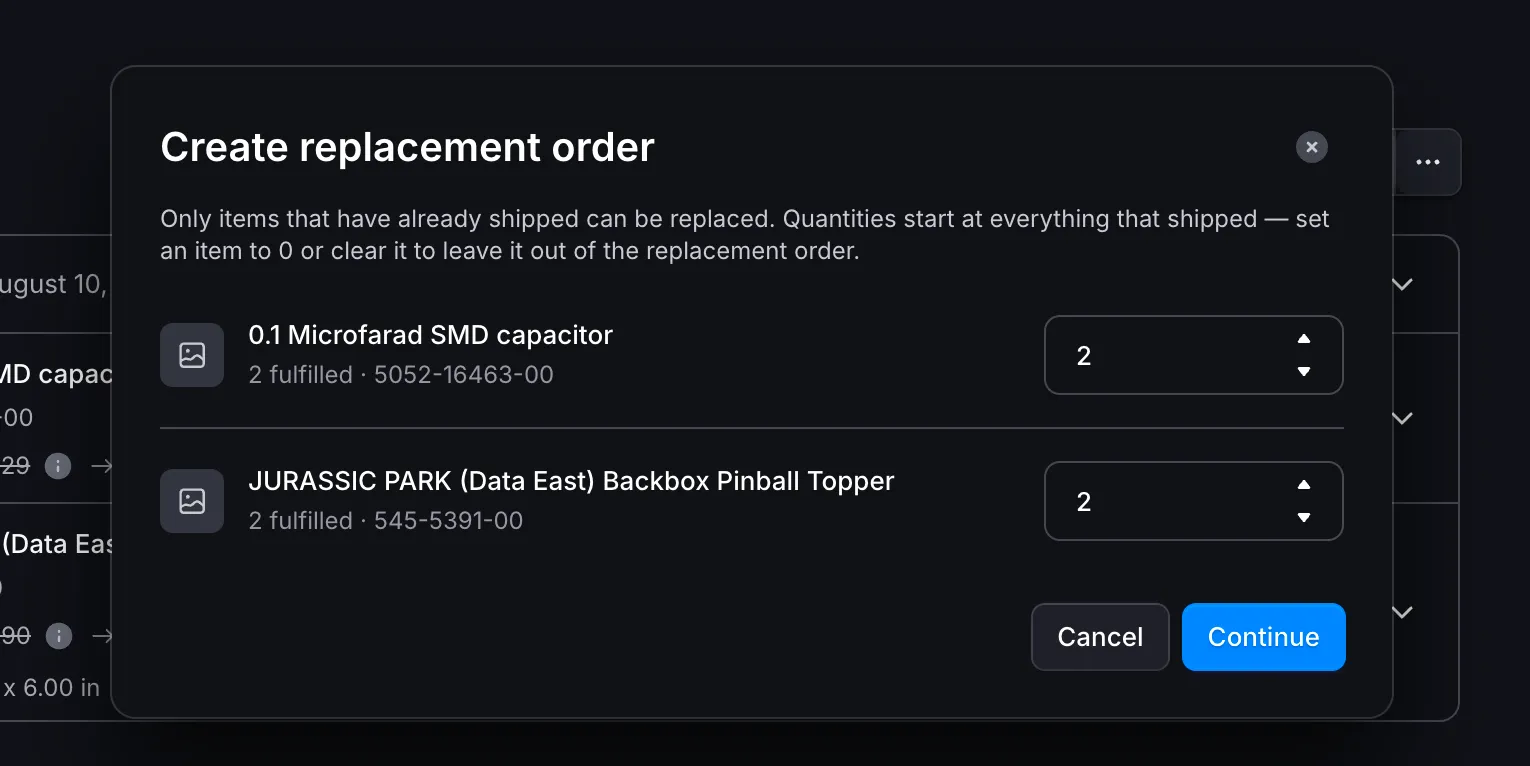
- Click More actions near the top, then select Create replacement order from the dropdown menu.
- Set the quantity to replace for each item. Every item starts at the full quantity that shipped, so if you are replacing an entire shipment you do not need to change anything. To leave an item out, set its quantity to
0or clear the field. - Click Continue. The create order form opens, prefilled with the items you chose and the original order's shipping address.
- Review and adjust the order:
- Ship to - Defaults to the original order's destination. Edit it if the replacement is going somewhere else.
- Price - Each item defaults to the price it carried on the original order. This is the value declared to customs, so leave it as the true commercial value of the goods even though you are not charging the shopper for them. Edit it only if the original price was wrong or has since changed.
- Qty - Still editable here if you change your mind after the picker.
- Click Get quote, then select a shipping method.
- Click Create order. Dashboard takes you to the new replacement order.
Note: If Create replacement order is missing from the More actions menu, the order has nothing that can be replaced—nothing has shipped yet, or the order is itself a replacement.
Where replacements appear
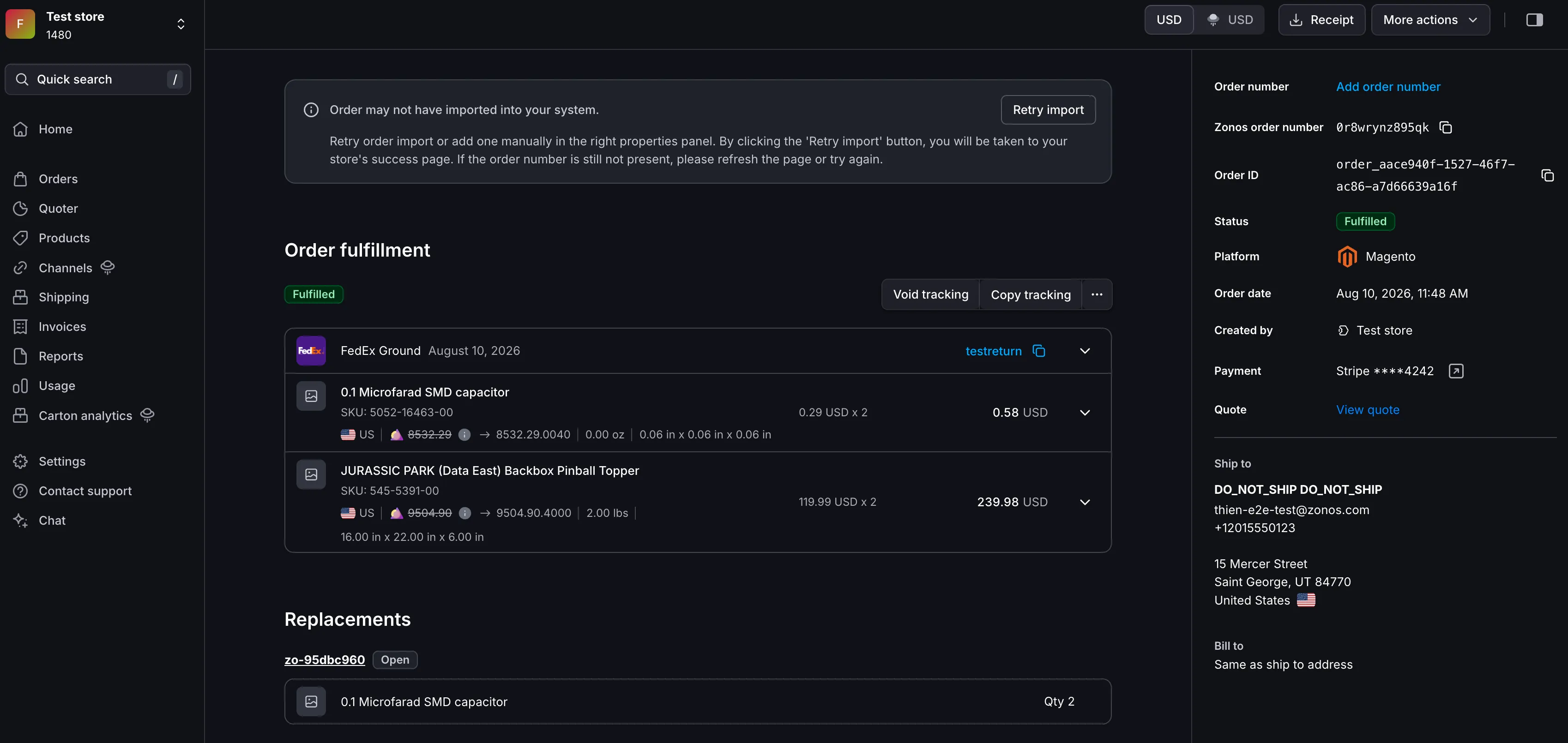
Both orders show the link, so you can start from whichever one you have.
- On the replacement order, a banner at the top names the order it replaces and links to it.
- On the original order, a Replacements section lists every replacement issued for it, with the items each one carries and its current status. An order replaced more than once lists each replacement separately.
Edit and add a platform order number
For most integrations, Zonos automatically syncs your platform order numbers to Dashboard. However, you can manually edit or add a platform order number if your platform doesn't sync with Dashboard.
To edit order number using Dashboard:
- Go to Dashboard -> Orders -> All orders.
- Find the order you want to change on the All orders page and click on it.
- Click Edit next to the Order number. If there is no order number, click Add order number instead.
- Enter the new or updated order number.
- Click Save.
Modify bill-to or ship-to
If you prefer to modify this information on the original order, follow the steps below to modify the bill-to or ship-to information on an order:
- Go to Dashboard -> Orders -> All orders.
- Find the order you want to change on the All orders page and click on it.
- Click the Edit button next to either the Ship to or Bill to sections.
- Modify the billing or shipping information in the dialog that opens.
- Click Save details.
Add a tracking number
You can manually add a tracking number to an order within Dashboard, which will set your order's status to Shipped and allow you to link your order up with its associated shipment.
If you print shipping labels from Dashboard, the tracking number is automatically added to the order in Dashboard when the label is generated. Additionally, most Zonos integrations automatically sync tracking both from Dashboard to the shopping cart platform, and from the platform to Dashboard.
To manually add a tracking number to an order:
- Go to Dashboard -> Orders -> All orders.
- Find the order to which you want to add tracking information and click on it.
- Click Add tracking number (next to the Create label button).
- Enter your tracking number in the dialog which comes up.
- Click Add tracking number.
Add a note
Zonos supports adding notes to orders to attach additional information to each order. Order notes will be visible to everyone on your team within Dashboard but not to your customers.
To add notes to an order using Dashboard:
- Go to Dashboard -> Orders -> All orders.
- Find the order to which you want to add notes on the All orders page and click on it.
- In the Activity section at the bottom of the page, enter your note in the textbox.
- Click Add note.
Change order information
Most order information can be edited, but doing so might affect coverage:
- Address information—You can edit the shipping and billing addresses on the order page by clicking Edit to the right of either. Doing so will update the shipping address when printing a label. You can also adjust the shipping address during label creation. Adjusting the address may void our fraud protection, since only the original address was approved by our fraud protocols.
- Product information—Product information is recorded on the order page. You may edit your product information during label creation if needed, but changing the HS code or price may void our guarantee, as it could affect the amount of duties and taxes due.
- Weight—The Estimated weight displayed right below the shipment information cannot be edited - it is the weight that was used to quote shipping costs (the greater of the physical and dimensional weight). However, the weight can be adjusted during label creation. Adjusting the weight will not void any coverage by Zonos, but it may make a difference in your shipping bill from your carrier.
Manage orders
Learn how to update an order.Dashboard allows you to manage orders in a number of ways. You can cancel orders, issue refunds, modify order information, add notes, and add tracking numbers.